

Hi Rick,
So the time has finally come, and I am making the move away from WWHB to DM. I have to say that the import from the WWHB json appears to have gone very smoothly but I've got a couple hundred+ topics to review. 😃
One thing I am still seeing is change detection where no changes have been made, just by browsing around the topics. I think this is line-ending stuff. I then noticed that the .gitignore and the .gitattributes files created with the new project are identical. Here's the content of both files:
*.bak
*.*.bak
*.tmp
*.saved.md
~*.*
__*.*
wwwroot/
_docmonster-*/
Should not the .gitattributes look more like this?
# Default: let Git normalize text files (LF in the repo, native on checkout)
* text=auto

# Files that should keep LF even on Windows
*.md    text eol=lf
*.sh    text eol=lf

# Files that should keep CRLF
*.bat   text eol=crlf
*.cmd   text eol=crlf
*.prg   text eol=crlf

DM is opening CSS & JS files in Notepad but I have Visual Code set as my default for both.
Bit of a challenge, that... 😃 I searched in the settings for external editor refs but nothing jumped out and bit me.
To clarify the first comment in this thread, git is recognizing file changes where none have been made.

Check the ExternalEditorPath setting.
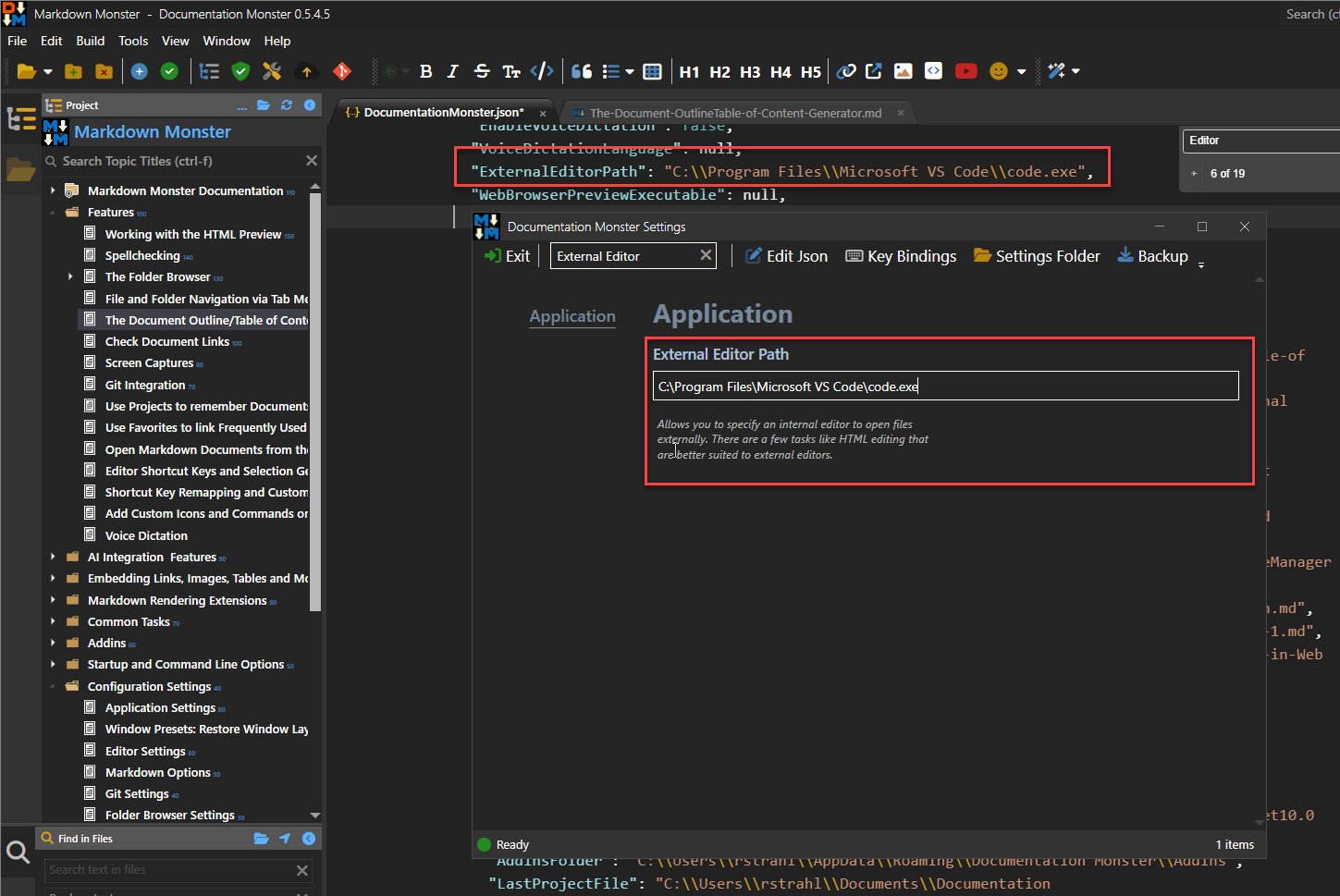
If you run DM for the first time it tries to find VS Code and uses that if installed (and EditPad, Sublime and a few others) and if it doesn't defaults to notepad.
Some files open with Windows Associations, but some of the explicitly opened files use the external editor.
+++ Rick ---
Thanks! I had searched for "Editor" but somehow missed it in the settings GUI.
I do have VC installed and it didn't find it.
I verified that I can invoke VC from a plain old command prompt so I know it's in my path.
Updated the setting and it's still bringing up Notepad. I even restarted DM just in case.
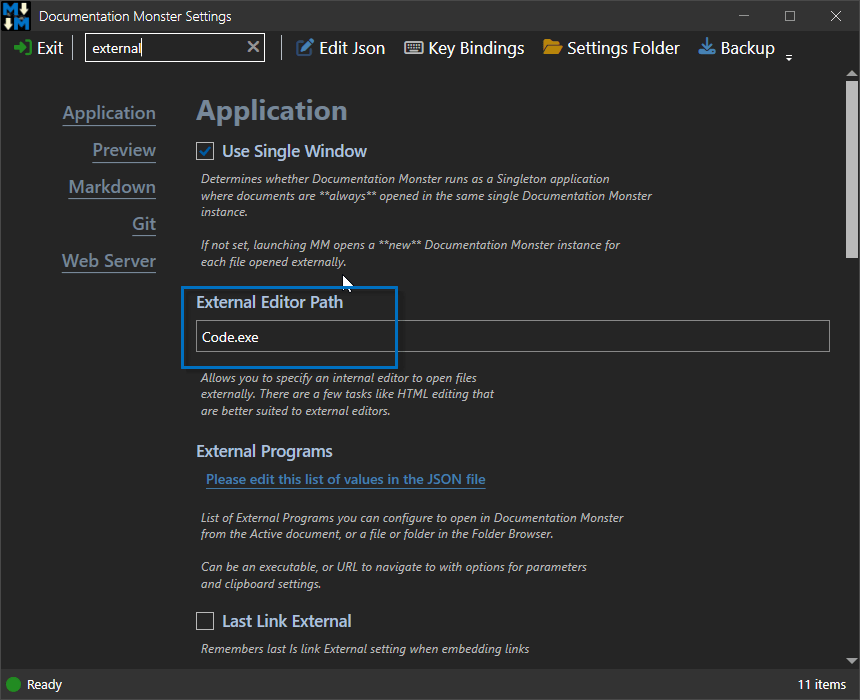
Maybe I should uninstall DM and reinstall?

There's no code.exe in the path. They use some command mapping (I think it's a .cmd file), so you have to specify the whole path for this to work. Just point at the install EXE like I do.
In Powershell:
Get-Command code
This shows you what fires and where it lives. For me it's:
C:\Program Files\Microsoft VS Code\bin\code.cmd
which is the same folder where vscode.exe lives.
+++ Rick ---
Sadly, the output from that is truncated on my system.

OTOH there is a code.exe in my system, and I really truly can just type code.exe in a regular command prompt and it works just fine.

IAC, I found the cmd file in the bin sub-folder and used that with the full path in DM settings. That works, albeit with a flashing command prompt flying by but that's no doubt related to the fact that I use an alternate command shell.
Because I know how much you love compound questions I'm going to start separate threads as I go. 😃
Sadly, the output from that is truncated on my system.
You know you can adjust the Console font-size using Ctrl-Scrollwheel right? Just size it down and then run the command again and it'll then fit.
In theory just providing the EXE or CMD file should work without a path - if they are on the Windows path for the current user. If I remember right the code uses ShellExecute() which respects the Windows path. But to be safe the full path should be used.
MM and DM look for an available editor which should find VS Code if installed in a standard location in Program Files or %appdata% if the config key is null or not available in the config. Once set it'll continue to use whatever you have set in there.
+++ Rick ---
Actually, no I was not aware of that behavior but I just widened the window and got the full output.

I initially hooked it up using the cmd file in the bin folder, but I just switched it to use the EXE and it works fine so that takes care of the command prompt flash. FWIW I do have VC installed in %appdata% and it is in my user path. So my problem is solved as far as that's concerned but if you want me to uninstall and reinstall to see if it picks it up properly just let me know.
So took a look at the code.
There was an explicit check in there that would try to find the file. If the file doesn't exist - in current folder or the Windows path - it would launch Notepad. The problem is that the various Windows file APIs for FindFile do not take path into account so unless you provided a full path notepad would always be launched.
Changed that by removing the File.Exists() check, so now it always runs ShellExecute() and if that fails only then it runs Notepad.
So, with that change you could now provide just Code for the external editor and it will run.
Also took a look for external editor discovery - the VS Code check only looked in Program Files - change it so it also checks the %appdata%\Programs location now which I guess is where most people have VS Code installed (I think Program Files is the All Users install or possible the newer install location that doesn't override the old one on updates).
+++ Rick ---